
Note: This module is for a new price calculation engine which is still under development. At this time, this module is for testing purposes only. We expect to have the full implementation ready early in 2027.
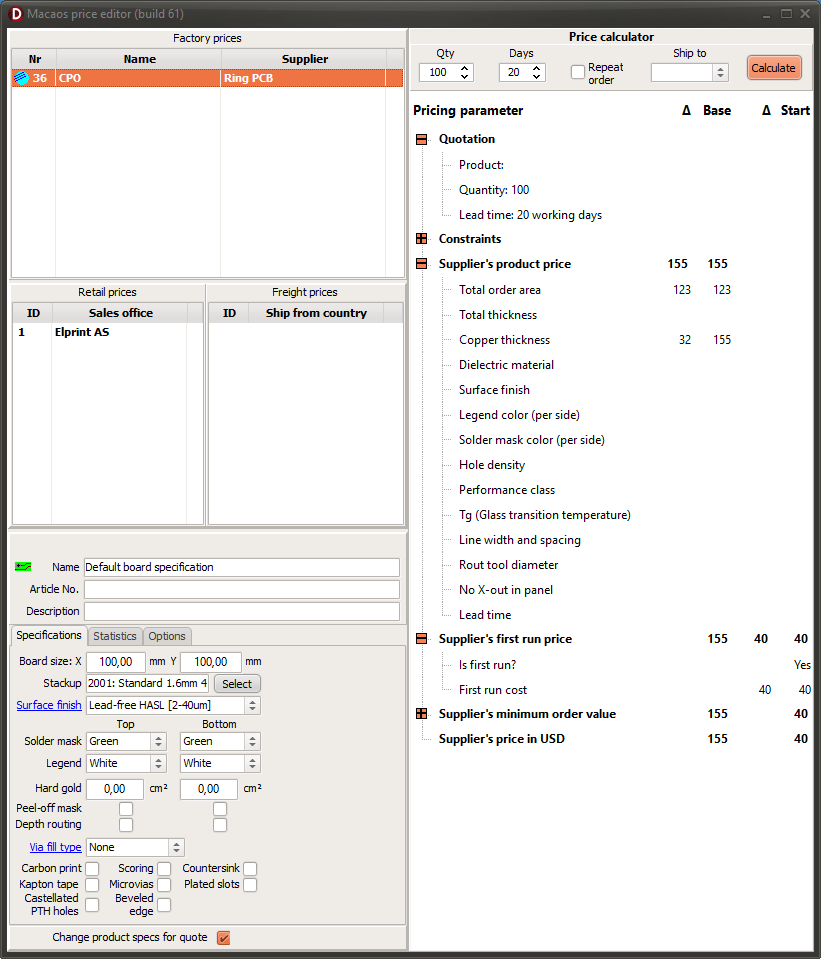
The Macaos system supports an advanced system for instant quotation generation, for most products. This system makes use of a set of price lists, which specify how the price will be calculated for various parameters of the product and the order.
There are three types of price lists:
- Supplier prices: Specification for calculating the price of a product/order from a supplier.
- Retail prices: Specification for calculating the margin added to the supplier price.
- Freight price: Specification for calculating the shipping cost from a supplier's country to the destination country.
Supplier and retail prices calculate two independent price parts: A base price (for producing the product) and a start price (for initial costs the first time the product is ordered).
Factory price lists can also specify constraints, which prevent a price from being calculated. This could either be due to a parameter which is out of range for the factory's capabilities; or due to a requirement which must be evaluated by an engineer before generating a quotation.
In general an instant quotation is generated as follows:
- Select the "best" factory price list for the product/order and calculate the price.
- Select the seller's retail price list, calculate the margin, and add it to the price.
- Select the freight price list for the selected factory price list's country.
- Calculate the freight price for the delivery country and desired shipping method, and add it to the price.
Using the Price Editor module
The Price Editor module lists all price lists which viewed by the user's company in the list(s) at the upper right.
Editing a price list
The following operations may be done with a price list:
- Edit a price list: Right-click on a price list in one of the three lists, and choose Edit price list. This opens the editor module. If the price list has been changed, the price list No. is marked with an asterisk (*).
- Save changes to the database: Right-click on a modifed price list, and choose Save changes. This updates the database with the modified price list.
- Ignore changes: Right-click on any price list, and choose Reload all price data. This reloads all price lists, discarding any unsaved changes.
Testing a price list
The module allows for testing a price list to see how it calculates the total price. The lower left pane allows various product parameters to be specified. At the top right, quantity, lead time (and other order parameters) may be specified. The calculate button calculates the price for the product and displays it in a step-by-step breakdown. This makes it easy to see how each price specification in the price list is applied.
If a product or order parameter is out of range, that step will show "Fail" and price calculation will stop.