
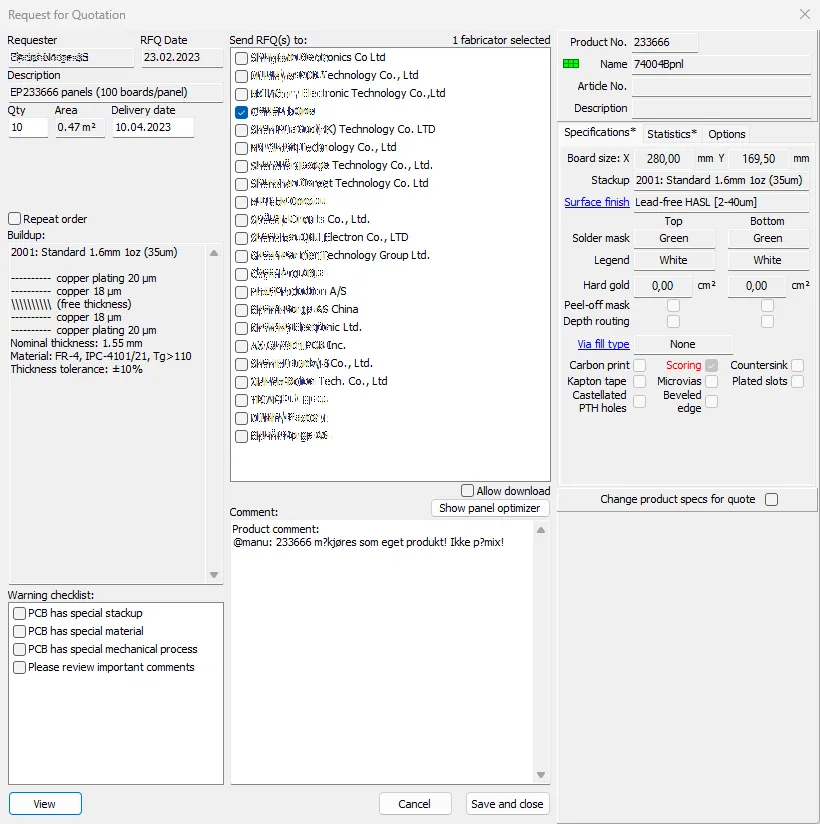
Right-click on an order to create an RFQ. The details are automatically filled out from the order, but these may be modified if desired. Select (check off for) the supplier(s) who will receive the RFQ. Set check marks if a UL certified supplier is required or if the supplier(s) should be allowed to download product data when preparing their quotation. Enter additional info as comments. Choose View to review the RFQ.
Once satisfied, choose Save and close to create the RFQ(s) and add the document(s) to the system for each selected supplier.
In cases where a quotation is needed for a product which has not been ordered, use the Tools|Create RFQ from product command or Tools|Create RFQ without product command to create an RFQ. In this case you must select at least one supplier and enter quantities and lead times before clicking on the View button.
If desired, the lead time may be specified as the minimum lead time, optionally plus days. To do this, check off for MLT and list the number of days after the minimum (e.g. 0,5 for MLT and MLT+5 days).