
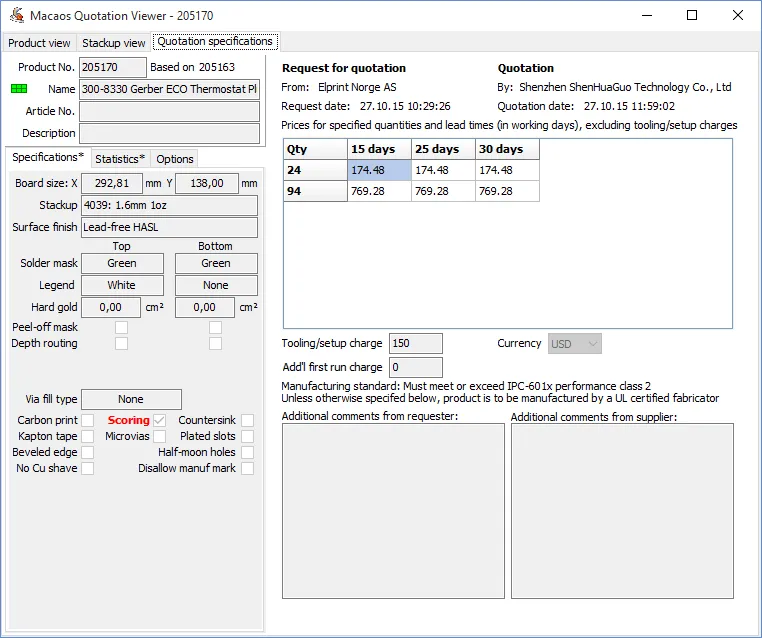
The quotation viewer displays quotation and product details for an RFQ. There are 3 tabs:
- Product view displays the product graphically. Use the check boxes on the Contents tab to show/hide layers as desired. The Help tab describes how to zoom, pan and measure. If the product requires a UL-mark, this will be indicated by a text in the lower right corner (just above the cursor coordinates).
- Stackup view displays the product's buildup graphically. Right-click on the graphic to copy a descriptive text to the clipboard, or to view a more detailed stackup drawing as a PDF document.
- Quotation specifications displays the product specifications, the component list, the panel optimizer, the RFQ details, a grid of prices and RFQ/Quotation comments. Product specifications which might have a special influence on the price are highlighted with red text.
For board quotations, the grid has one row for each desired quantity and one column for each desired lead time. If available, you may click on the Download product data button (at the bottom) to download a zip file containing Gerber files and additional information. Note: If the RFQ was generated asking for a minimum lead time, then this must be specified before any prices may be entered.
For assembly quotations the grid has one row for each desired quantity and two additional columns: one for the lowest price, and one for the price with the shortest lead time. The shipment dates for these two columns must be entered to the right of the grid. If available, you may click on the Download product data button (at the bottom) to download a zip file containing Gerber files and additional information. Click on the Veiw PnP data or View BOM buttons (at the bottom of the component list) to view the PnP or Bill of Materials data in a grid. The Estimate prices button may be used to estimate the prices for all components, using data available from the Octopart database.
Once you have entered all necessary information, click on the View (and save) quotation button to review the quotation and (if satisfied) upload it to the server.
Quotation details and price grid
The price grid shows quantities and lead times in working days for which prices are requested.
If no quotation has been generated, the supplier may enter prices into the grid. These prices should be total prices for each requested quantity/lead-time, excluding any tooling/setup charge (which is a setup charge for each production run) and first-run charge (which is an additional setup charge for the first production run). The tooling/setup and first-run charges are to be entered just below the grid; and will apply to all qty/days prices in the grid. The currency should be selected, and additional comments (if any) entered before clicking on the View (and save) quotation button. This button generates a quotation as a PDF document. After viewing the quotation, the user will be asked if the quotation should be uploaded to the archive. If the user chooses not to upload the document, he/she may make necessary changes and try again.
If, for some reason, the supplier does not wish to offer a price for the requested product/qty/lead time then a No Offer response may be generated with the No Offer button. An explanation of why no offer is being given should be entered in the comment field prior to responding with No Offer.
When a quotation has been generated in the quotation viewer, the price grid will display the prices.
 Panel optimizer
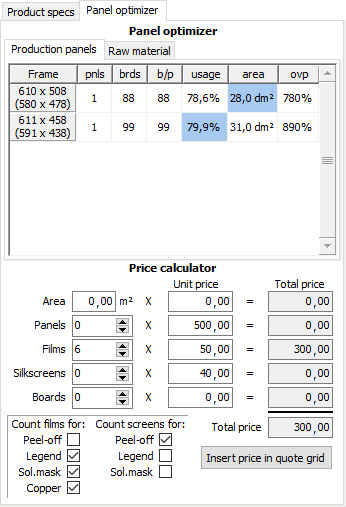
The panel optimizer may be used by a supplier to estimate the size and quantity of panels required to manufacture an order for PCB products. This tool is useful for calculating production costs while making a quotation. There are two optimizer modes:
- Production panels calculates the maximum number of boards which will fit into a production panel. Blue fields indicate the best fit for panel utilization, total area or overproduction. Right-click to define new panel sizes.
- Raw material calculates an optimal panel size for standard sheets of dielectric material. Blue fields indicate the best fit for quantity, total area and scrap. Panel size is adjusted between a minimum and maximum frame width to best utilize the sheet.
The price calculator calculates a price for the selected panel or sheet, which may easily be inserted into the selected grid cell.
Component list
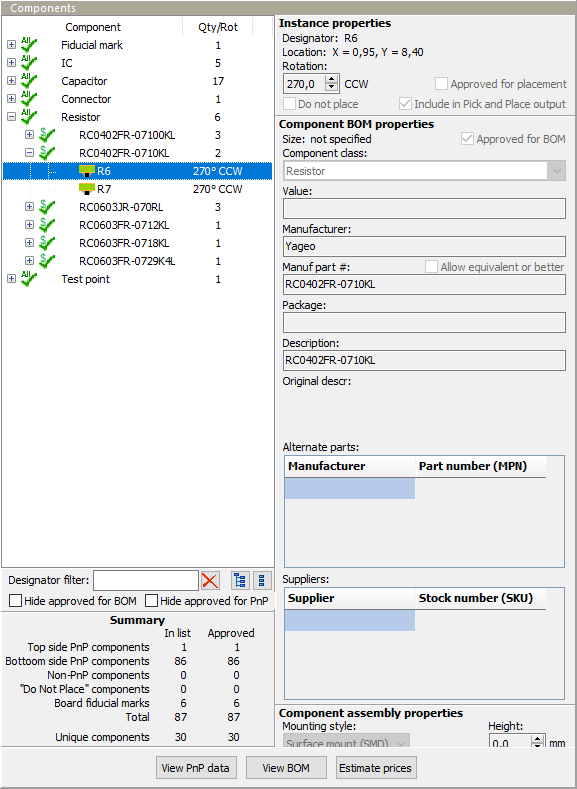
The component list has three levels:
- The component class (resistor, capacitor, connector, etc).
- The component (a single part number). When displaying a component, you can view the properties which apply to all instances of that component.
- The component instance (at a specific location). When viewing a component instance, you can also view the PnP coordinates, rotation and placement status of that instance.
Each component instance in the list displays an icon which indicates whether the component is a fiducial mark, should not be installed, is included in PnPor not. The icon also indicates whether the component is on the top or bottom layer.
To search for a component in the list, type the designator in the text box at the bottom of the component list. You can also use the check boxes to hide approved components, and the tree buttons to expand or collapse all levels of the component list.
PnP and BOM Data
Clicking on the View PNP data button opens a grid which displays the row number, designator, x and y coordinates, rotation, layer, height and description of each component instance.
Clicking on the View BOM button opens a grid which displays the row number, manufacturer part number, manufacturer, description, quantity, designators and mounting style of each component.
Estimating component prices
Clicking on the Estimate Prices button opens the Component pricing estimator module. This module lists all of the components which have an ID code and price offers from available suppliers. In addition, all suppliers and all currencies are listed at the left.
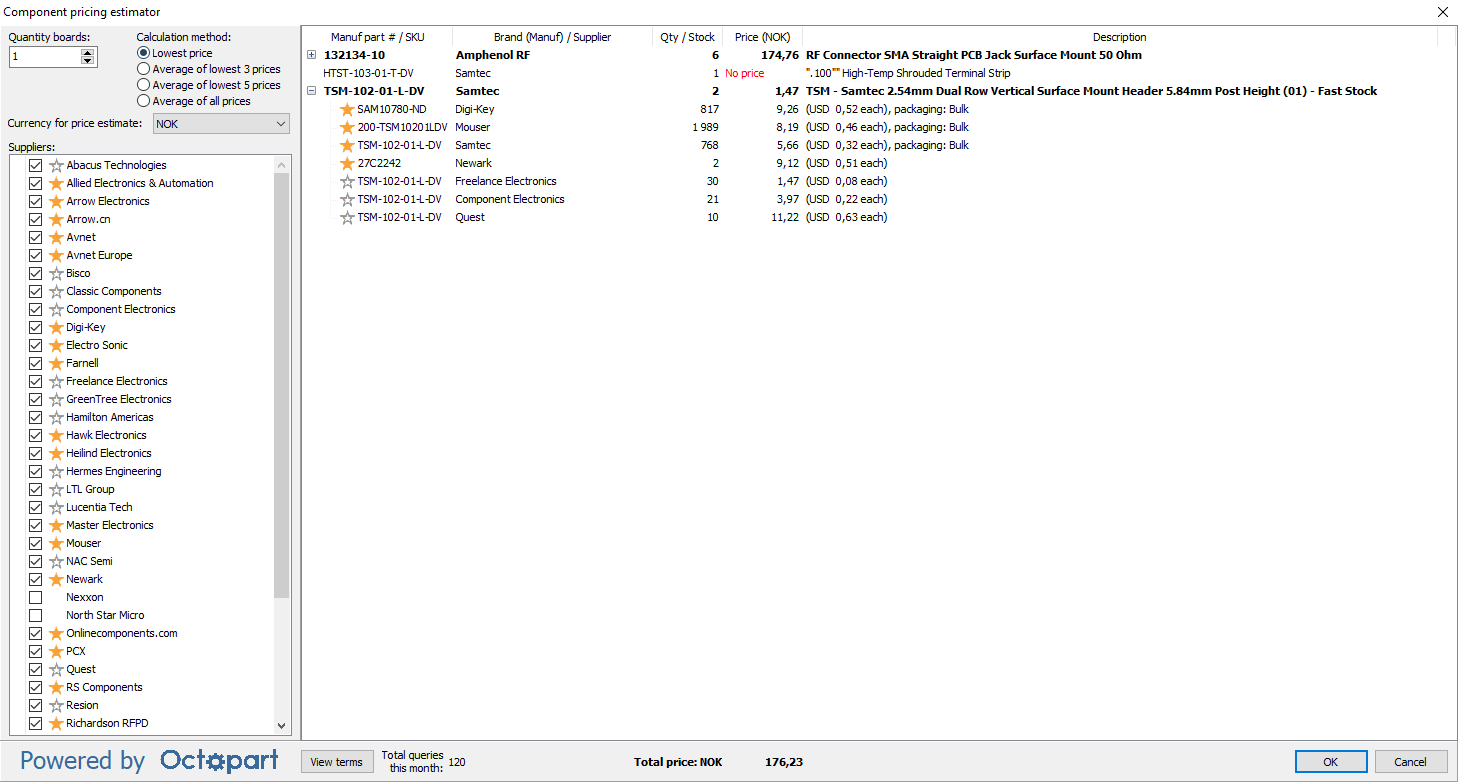
Select the Quantity boards to be produced (if the RFQ has more than one quantity), select a Calculation method and the desired Currency for price estimate. If desired, remove the check mark from any suppliers to exclude when calculating the total price. The total price is automatically updated when a parameter is changed.
For each component, the manufacturer part number, manufacturer, quantity required (for the specified board quantity), estimated price and component description are listed. Right-click on a component to open the Octopart web page for the component.
Click on the small + (plus) button to the left of a manufacturer part number to see details of the supplier offers (with sufficient stock) for that component. For each supplier, the SKU, supplier name, quantity in stock, price in desired currency, price in supplier’s currency and packaging (if known) are listed.
Suppliers with a yellow star are authorized distributors for the manufacturer. Suppliers with a gray star outline are non-authorized stocking distributors. Suppliers without a star are brokers. See https://octopart.com/authorized for a description of these supplier classifications.
The price estimator converts all prices to the desired currency (using Octopart’s exchange rate) when calculating the total price. In the Description column for each offer, the actual price in the original currency is shown. The total price estimate for all components (with prices) is shown at the bottom of the price estimator module.
Note: All price offers are provided by suppliers through Octopart. Macaos Software AS bears no responsibility for the accuracy, fitness or usability of price offers presented in this module.