
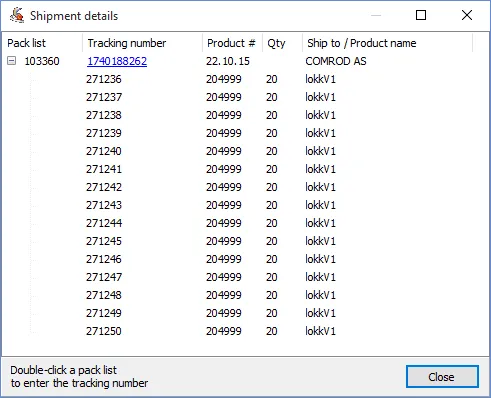
The shipment details module lists all of the packing lists and vacuum-packages for a work order.
For each packing list, the carrier's tracking number is displayed (if available). To add or replace the tracking number, double-click on the packing list number. To view the carrier's tracking information, click on the tracking number.
For each vacuum-package, the vacuum-package number, product number and quantity are listed.
Right-clicking on the list opens a menu with the following actions:
- Enter tracking number: Allows the shipment's tracking number to be added or replaced
- Create UPS export file: Opens the UPS WorldShip module to create an XML Auto-Import file
- Import UPS tracking number: Imports the tracking number from UPS WorldShip (after export)
- Print address label: Reprints an address label
- Print packing list: Reprints a packing list
- Print vacuum label: Reprints the vacuum label. The vacuum label has a bar code with the vacuum-package number, as well as information about the contents of the vacuum-package. If the product's article number is between 1 and 20 characters, this is also printed as a bar code.
- Print package contents label: Reprints the package contents label. The package contents label has a bar code with the product number as well as information about the product in the package. If there is a purchase order number, it is printed as a bar code, otherwise the product's article number is printed as a bar code.
- View packing list details: Opens a dialog box showing the details of the packing list.
- Change recipient to end customer: Changes the recipient of the packing list from the seller to the end user. This function is only enabled under special circumstances.
- Specify UPS export path: Specifies the location where XML Auto-Import files for UPS WorldShip will be saved.