
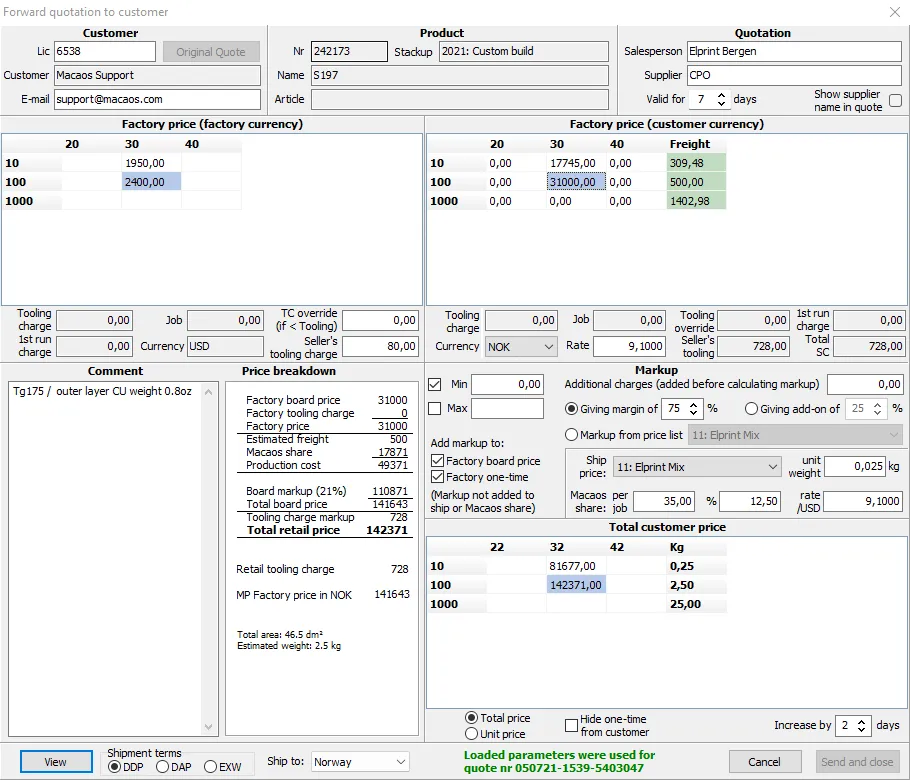
This module is used to generate a quotation to a customer based on a quotation from a supplier.
If the RFQ to the supplier was generated by a Macaos Enterprise user, then customer info is loaded automatically. Otherwise, enter the customer's Macaos license number, or fill out the name and e-mail address. Use the Original quote button to view the customer's quotation from Macaos Enterprise.
Factory prices
If the supplier's quotation has been generated in the quotation viewer, then the factory prices will be loaded automatically. Factory prices are shown both in the factory's currency (left) and the customer's currency (right).
The customer currency and exchange rate may be specified as necessary.
The factory's board price is shown in the grid. The factory's Tooling charge or Setup charge is shown in the edit boxes just below the grid. Note: For PCBA jobs the term Setup charge is used, while for other jobs the term Tooling charge is used.
If desired, the factory board price may be modified by entering a different value in a cell of the customer currency grid. After entering the desired value, press the Enter key to commit the change and update the price breakdown. Note: Any changes entered into the board price cells of the customer currency grid will be lost if the Currency or exchange Rate are changed.
Tooling or Setup charges
The factory may specify a tooling or setup charge (which is a setup charge for each production run) as well as a first run charge (which is an additional setup charge for the first production run).
Sometimes, it may be desirable to conceal a portion of the tooling/setup charge in the board price. This can be done as follows:
- Specify an Override value which is less than the tooling/setup cost.
- The remainder of the tooling/setup cost will be shown as the Job price.
- When prices are calculated, the Job price is included in the Factory board price while the Override becomes the Factory tooling/Setup charge.
The Seller's tooling/setup charge is an additional tooling or setup charge in the retail price, which will not be passed on to the supplier.
Markup
An Additional charge may be added to the board prices. This may be useful for specifying taxes, handling charges, cost of materials supplied by office, etc. This charge is added to the board price for each qty/days point prior to calculating the markup.
To calculate the customer price, a markup is added to the factory price (and additional charge, if any). Use the check boxes to specify if markup is to be added to the board price and/or the tooling/setup charge. Three different methods are available for calculating the markup:
- Giving margin of calculates the markup which will result in the seller's margin being the specified percentage of the total price (excluding freight and Macaos costs).
- Giving add-on of calculates the markup as a percentage of the factory price.
- Markup from price list uses the selected price list to calculate the markup.
The Min and Max values limit the calculated markup which will be added to the factory price, if the corresponding check box is checked.
Ship price
The estimated weight for each quantity is shown in the right column of the Total customer price (lower right) grid. This may be adjusted, if necessary, by adjusting the unit weight.
Estimated shipping costs for each quantity are calculated from the Ship price of the selected price list, and the selected destination country. These are shown in the green column of the upper left grid. If necessary, these prices may be modified by entering the desired value in the grid cell. Note: Any changes entered into ship price cells of the customer currency grid will be lost if the Ship price, Ship to country, or unit weight are changed.
Macaos share
The Macaos share is an estimate of the additional cost which the seller will pay to Macaos for processing the order. The default values are based on the seller's contract with Macaos and should normally not be changed.
Total customer price
The total customer price for each quantity and lead time are shown in the Total customer price (lower right) grid. These are the prices which will be included in the quotation to the customer. Clicking on a cell in any grid displays a complete Price breakdown for the selected quantity and lead time. Note: In the price breakdown, the Factory price in NOK is the amount (including freight) which would be entered into Macaos Perception when creating an order based on this quotation.
If desired, use the Hide one-time from customer check box to hide the one-time costs. One-time costs will be included in the board price rather than as a separate line item.
For PCBA RFQs, the Exclude price for bare PCB check box determines whether or not the PCB cost is included in the quotation.
If necessary, use Increase by ... days to increase the delivery time in the generated quotation.
Right-click on any grid and choose Copy grid to clipboard to copy the contents of the grid to the clipboard.
Right-click on any grid and choose Copy price summary to clipboard to copy a summary of the total customer prices to the clipboard. This summary includes customer and product information as well as per-board prices (with and without start cost).
Quotation to customer
Most board specifications are automatically taken from the RFQ's product specifications. However, some additional specifications, such as via filling and plated slots, may be specified as necessary.
Additional comments to appear in the quotation may be added to the Comment memo box.
The seller's name should be entered in the Salesperson edit box.
The supplier's identifier (or full name, if desired) should be entered in the Supplier edit box. Hold the mouse pointer over the Supplier edit box to view the supplier's full name. Use the check box to include the supplier's identifier in the quotation.
Select the Incoterms type (DDP, DAP or EXW) and the number of days the quotation is valid.
Once all prices and parameters are correct, click the View button to view the quotation as it will be sent to the customer.
If the quotation is satisfactory, click on the Send and close button. The quotation will be sent to the specified e-mail address as a pdf attachment. The quotation is also added to the database of Macaos Enterprise quotations.
When a quotation is sent, the parameters used to generate the quotation are saved with the RFQ. If the Quotation forwarding module is reopened, then it will be pre-loaded with the parameters used to generate the previous quotation. This is indicated by green text at the bottom of the module. Note: Only the parameters from the most recently sent quotation are stored with the RFQ.