
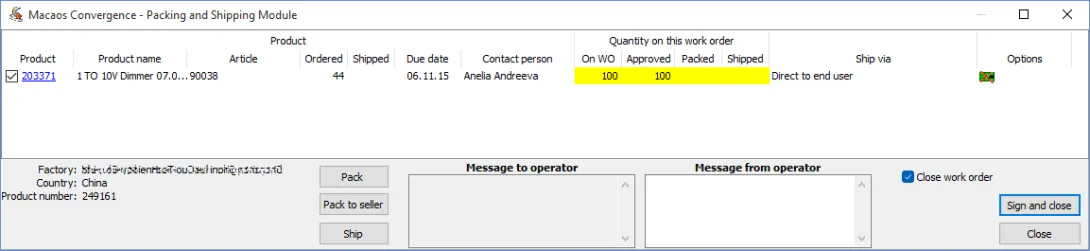
The Pack/Ship milepost opens the Packing and Shipping module, which is used to generate packing documents and to enter shipment tracking numbers.
Each customer order in the work order is listed with order details as well as quantities on the work order. The quantity cells are color coded, to indicate the status for shipment:
- Green: There are enough boards packed or in stock to fulfill the order
- Yellow: There are enough boards approved to fulfill the order
The packing and shipping module is used to manage packaging and shipping of the products in a work order. This is done in two steps:
Packing: For each product/order, four kinds of documents are generated:
- one or more labels for the vacuum packages
- a package content label
- a packing list
- a shipping address label
The specified quantity of boards are marked as Packed in the database.
- Shipping: For each packing list, the carrier's tracking number must be entered. Once this is done, the items are marked as Shipped in the database.
The module uses an internal rule set to determine whether the customer order should be sent directly to the end user or not. This may be changed by right-clicking on a row and choosing Toggle ship via.
The options column shows icons for packing/shipping related order options. These indicate additional requirements when packing and shipping.
A red field in the Ship via column indicates that there are special shipment instructions for that order. Hold the mousepointer over the red field to view the instructions.
Packing
Note: Prior to packing products, be sure that your label printer has been configured. This may be done with the Configure|Select printer for printing packing labels printer menu command.
 When clicking on the Pack button, only customer orders whose check box has a check mark, and which have Approved but unpacked boards will be processed. For each customer order, the quantity to package and the quantity per vacuum-package should be specified. The following documents are generated:
- A vacuum-package label with a unique package number for each vacuum-package
- A package content label with bar codes for the product number and article number (if any)
- An address label for each recipient
- A packing list for each recipient
Note: If the quantity packed is less than the quantity approved, the user will be asked whether or not to delete the unpacked items. Items which will be discarded must also be deleted from the system. If, however, the items will be stored for later shipment, they should not be deleted.
Note: A number is usually printed in the upper right corner of the address label. This is the number of days between the date the label was printed and the due date. This number may be used to choose between a slower (lower cost) or a faster (higher cost) shipping method. A negative number indicates a late shipment. If no number is printed, then the label was printed on or after the due date.
The Pack to office button packs all remaining boards and ships them to the sales office (even if they would otherwise have been shipped directly to the customer).
Shipping
Once the package is complete, click on the Ship button to open the Shipment details module. Double-click on each packing list number to enter the carrier's (UPS, DHL, etc) tracking number (or waybill number).
Once all boards have been shipped, click on the Sign and close button to sign the milepost.
Milepost messages
By clicking on a milepost assigned to another organization, you can enter a message to the operator for that milepost. It is also possible for the operator to enter a message when signing a milepost.
If a milepost has a message, this is indicated by the use of bold text in the milepost.