Menu bar
- File menu
- Exit Close the program
- Exit and clear login Close the program and delete login parameters
- View as [sellers only] Choose to view as seller or as one of their suppliers
- Tools menu
- Ship finished work orders Sign several work orders as shipped with the same tracking #
- WO history for product Show all work orders for a product, also those >2 years old
- Create RFQ from product Creates an RFQ from a product which has not been ordered
- Create RFQ without product Creates an RFQ based on PCB specifications
- Create WO by product number Creates a work order for a product which has not been ordered
- Create WO by selecting product Creates a work order for a product selected from a list
- Configure menu
- Select printer for printing packing labels Select the label printer
- Email address for RFQ/WO notification Address to receive notification of new RFQs/WOs
- Accept POs without OCs When enabled, accept POs without generating an OC
- Upload supplier certification document Upload supplier certifications to the Macaos server
- Help menu
- User manual Opens this document
- About Display application version info
Filter Tool bar
The tool bar for each view has several panels which may be used to filter content in the view.

The Refresh button reloads the view with updated data from the server. All other filter settings will also be applied when clicking Refresh.
The Due date range panel [Outgoing shipments view only] specifies the date range for shipments in the view. Unlike the other filtering panels, changing the start and/or end date reloads the view with updated data from the server.
The Search for panel may be used hide all rows which do not contain the specified text in one of their columns. Click the Find button to hide rows. Click the Clear button to delete the search text and restore the hidden rows. See the Filtering subsection of the desired View section in the appropriate Using Macaos Convergence chapter for a list of applicable columns.
The Date range panel [RFQs view only] specifies the date range for RFQs in the view. Changing the date range does not retrieve updated data from the server.
The Suppliers list [sellers only] may be used to include/exclude specific suppliers in the view. Click on the down-arrow to select individual suppliers, or right-click to select all or none.
The Product types list may be used to include/exclude specific product types in the view. Click on the down-arrow to select individual product types, or right-click to select all or none.
The Hide check boxes are used to show/hide rows with the specified status (text color).
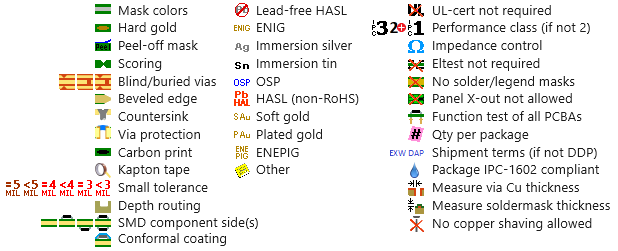
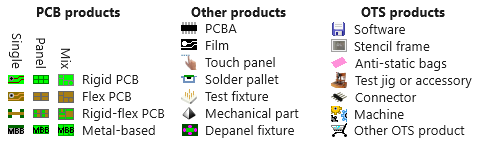
The Show check boxes are used to show/hide groups of columns in the view.Many of the lists and buttons have icons to help quickly identify objects. In addition to national flags, the following icons are used.
Icons
Many of the lists have icons to help quickly identify objects. In addition to national flags and company logos, the following icons are used:
Work order type icons
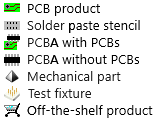
Product type icons
Product specification and option icons